How to Get Google Reviews And Handle the Bad Ones Under New Rules
Local SEO
October 29, 2026
Last updated: November 3, 2026
You can get Google reviews by following a streamlined process: an optimized Google Business Profile (GBP), available customer review systems, timely requests for reviews, and professional responses to customer reviews.
However, with Google’s updated review policy in April 2026, you must be careful when responding to your reviews, especially the bad ones.
Failing to respond appropriately may result in policy-violating consequences, including suspension of your Google account.
So, if you’re ready to learn how to get Google reviews for your business safely and deal with negative ones, read on.
Google Review Request & Response Templates
Download our free review response templates today and respond to reviews with ease across all major review platforms.
What Changed in April 2026: The Rules for Getting More Google Reviews
Google has been constantly updating its Maps and reviews policy over the years to maintain a healthy reviews ecosystem.
Their recent updates in April ‘26 came with a reviews pre-screening upgrade:
Gemini’s Review Screening Before Going Live
Now, Gemini will reportedly work as the gatekeeper of reviews. It will analyze the patterns and phrasing of reviews before they go live and signal to Google about their eligibility for publishing.
Things that Gemini will inspect:
- IP address: To see whether multiple, similar reviews are coming from the same IP address or not.
- Phrasing: Checking if similar phrasing exists across several reviews.
- Location: Navigating whether a review has been submitted from the location of the service.
- Timing: Checking if the review matches the timing of the service.
What Google Has Banned Now
Apart from the technical upgrade, Google will now monitor and regulate business and customer interactions in the reviews section.
Practices that have been banned by Google are:
- Review quotas for staff members
- The mention of an employee’s name in reviews
- Requesting instant reviews during checkouts (on-premise reviews)
- Review gating or manipulative reviews
- Incentivized reviews from customers
- Asking customers to use specific keywords in reviews
What Happens If Google Flags Your Business Profile
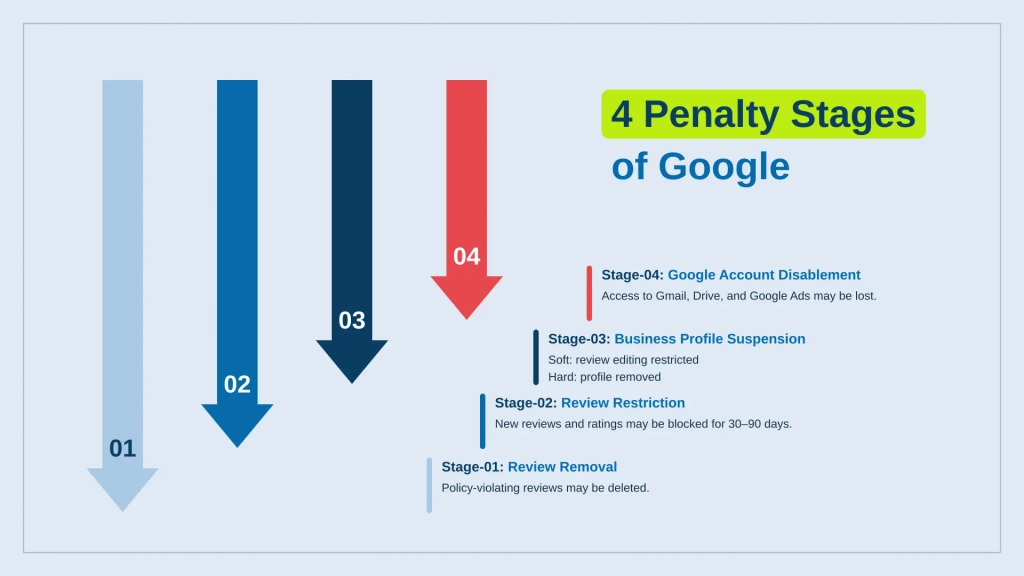
Google will take multi-stage disciplinary actions when you keep failing to comply with its review policy.
Consequences you may face are:
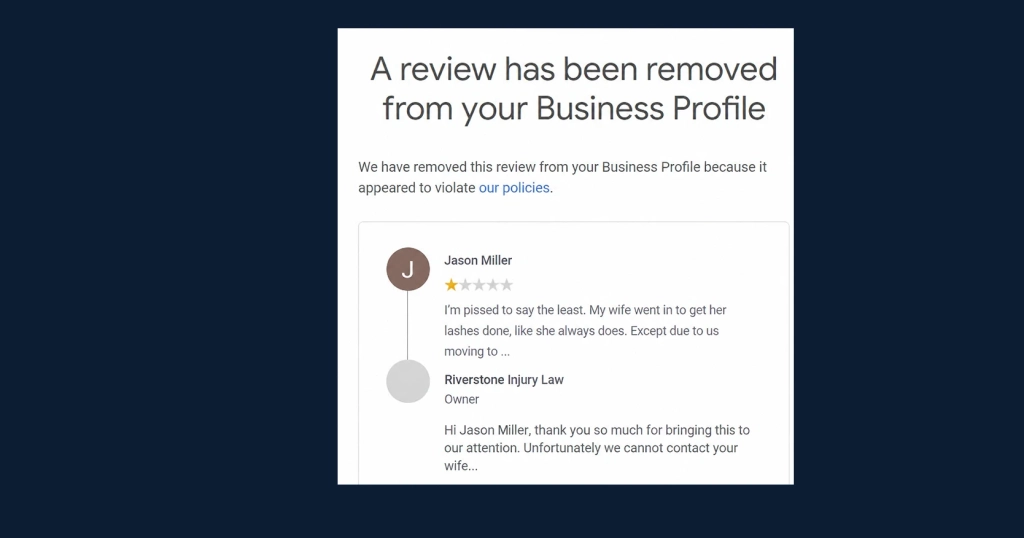
Google Will Delete Your Reviews
The very first thing Google can do after flagging your business profile is remove your reviews. But it won’t get rid of random reviews from your profile.
Instead, the ones that are detected as spammy, incentivized, or manipulated will be deleted. The rule applies to both types of reviews:
- Reviews that you’ve gathered through manipulation, conflict of interest, or incentivization.
- 1-star negative reviews left by scammers.
The problem is, you may or may not be notified about the removal of these reviews, especially if it’s pre-screened and deleted by Google’s automated system.
Google may only notify you if a review was flagged and reported for removal by you, and Google agreed to remove it.
Reviews and Ratings Will Be Temporarily Restricted
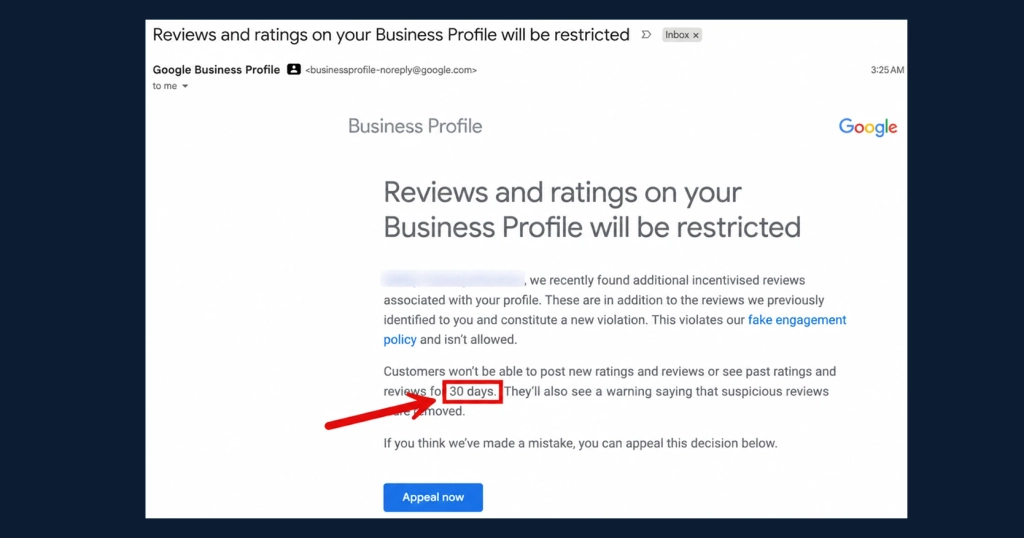
Next, Google can temporarily restrict the reviews and ratings on your business profile if it finds you continuing with the review policy violation.
You’ll be notified by email if the restriction is applied under Google’s Fake Engagement policy. The restriction may initially last for 30 days, and it may extend up to 90 days, given that you’re constantly failing to comply with the policy.
Google may even show a public notice saying that your fake reviews were recently removed.
Google May Suspend Your Google Business Profile
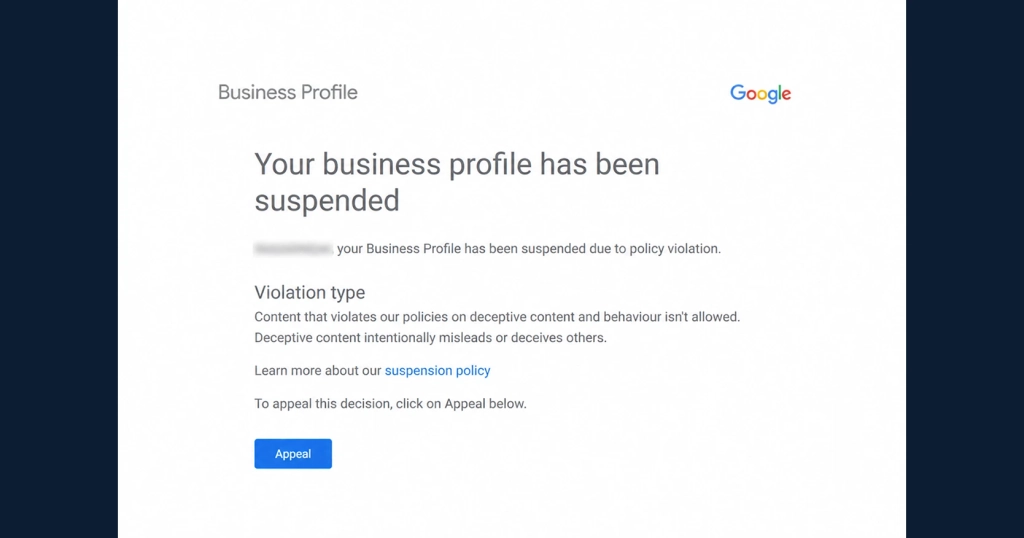
Your business profile may take a hit due to not complying with Google’s review policy. Google will suspend your GBP, enforcing either Soft Suspension or Hard Suspension:
- Soft Suspension: It implies your inability to edit your GBP’s content or reviews, although it remains live.
- Hard Suspension: Your GBP will be completely removed from search results and Google Maps.
Possible reasons for getting your GBP suspended may include:
- Keyword stuffing in the business title
- Rapid and suspicious edits to your profile information
- Inconsistency in address information
Google May Disable Your Google Account
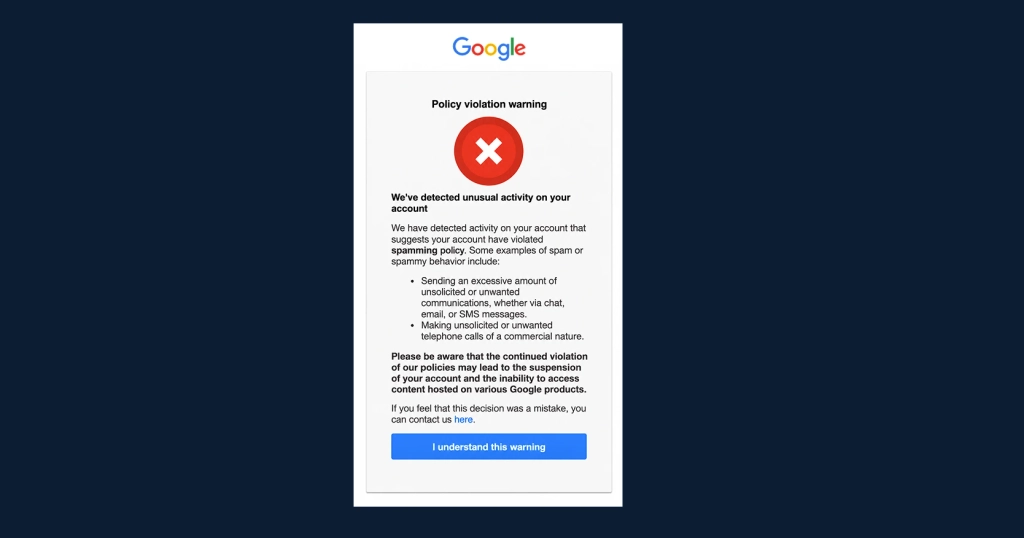
Google may implement an account-level penalty where your main Google account will be disabled or locked.
You’ll no longer be able to access your Gmail, Drive, Google Ads, or relevant tools connected to the account.
Such a high-level penalty may arise if you keep violating Google’s content and review ecosystem, as described in their Terms of Service.
So, let’s take a quick view into Google’s policy-violating penalty stages:
Where the Federal Trade Commission (FTC) Fits in Google’s Review Policy Violation
The Federal Trade Commission (FTC), an independent government organization in the US, protects consumer rights and ensures fair competition in the market.
It monitors online consumer reviews, with a particular focus on Google reviews lately.
While Google tackles fake or manipulative reviews from an operational standpoint, the FTC implements legal action against businesses that fall under policy violations.
Google vs. FTC Penalties for Review Violations
If you’ve bought a review by paying or incentivizing your customer, Google may remove your reviews, restrict reviews, and suspend your GBP or Google account.
The FTC, on the other hand, may enforce legal and financial penalties, fining you more than $50,000 per fake or manipulated review.
The following table summarizes the Google vs. FTC penalty scenario on online customer reviews:
6 Safest Ways to Get Google Reviews
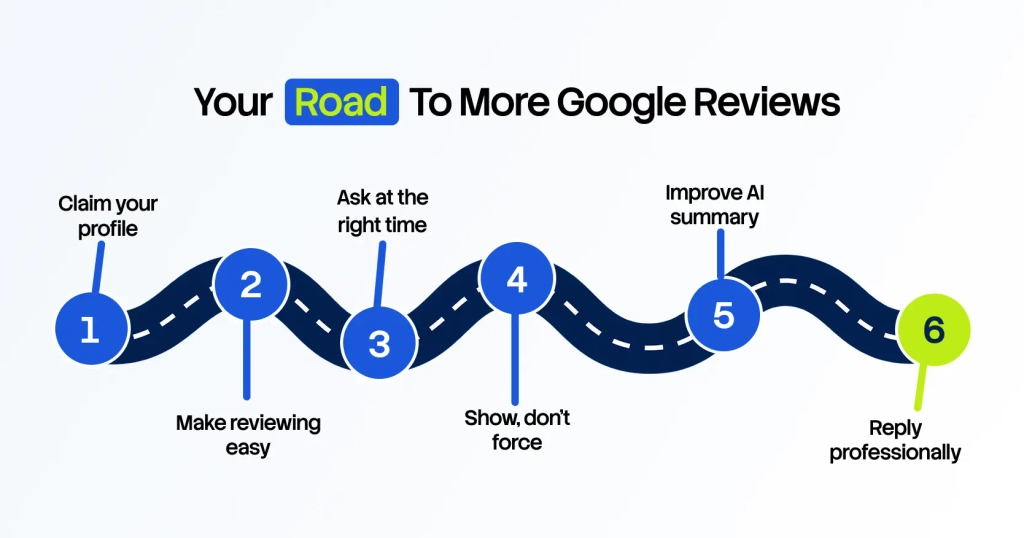
1. Claim Your Business Profile and Keep Reviews on One Profile
Claiming your Google Business Profile (GBP) through verification is the very first step to get Google reviews.
A claimed GBP prevents risks of profile duplication, helping customers to leave their reviews in the right place. It also boosts your local SEO ranking factors, leading to better reviews and more business.
Here, you can update business information for higher online visibility, including:
- Adding business categories (primary and subcategories)
- Updating address and map pin
- Adding operating hours and the website URL
2. Get Your Free Review Link and QR Code
Your most willing customers may struggle to share their feedback if they don’t know where to leave reviews.
Hence, make the review options available in relevant touchpoints. One of the best ways to do this is by sharing QR codes with your customers.
How to do it? It’s simple:
- Create a QR code from your GBP’s ‘Read Reviews’ section.
- Print it on your business cards, shopping bags, or product packages.
- Link it to your email signatures and invoices.
- Add it to your website (restaurant, takeout, or eCommerce business).
- Link it to your business social handles (Facebook, Instagram, YouTube, etc.).
You can also try an NFC (Near Field Communication) chip as a tap-to-review sticker on business cards to get reviews.
However, be mindful of Google’s policy violations when using a QR code or NFC:
- Use a simple message: Say, “Give Us Your Feedback,” not “Leave us a 5-star rating.”
- Don’t Push for Reviews: Instant QR scan-and-review requests can violate Google’s ‘on-premise review-asking’ policy.
- No Repetitive Requests: Repeatedly sending QR scan-and-review requests may even lead to negative reviews.
3: Ask Every Customer at the Right Moment
Ideally, you can ask the customer for a review shortly after they’ve made a purchase or expressed their satisfaction. However:
- Avoid it if it seems inappropriate to ask for a review face to face.
- Ask for it over the phone, via email, or via text message.
- Train your staff to do the same.
So, the key idea is to ask the customer for a review when their experience is fresh. But you must also respect their space.
4: Show How to Leave a Review (Don’t Force It)
Some customers may be reluctant to give instant reviews. One of the main reasons behind this is that they may not be familiar with the Google review system at all.
To help them out, show them how to leave a review on the GBP. If they agree to do it, fine. Otherwise, let them go.
At best, you may ask a customer to leave an honest review at their earliest possible time.
5: Consider Improving AI Review Summary
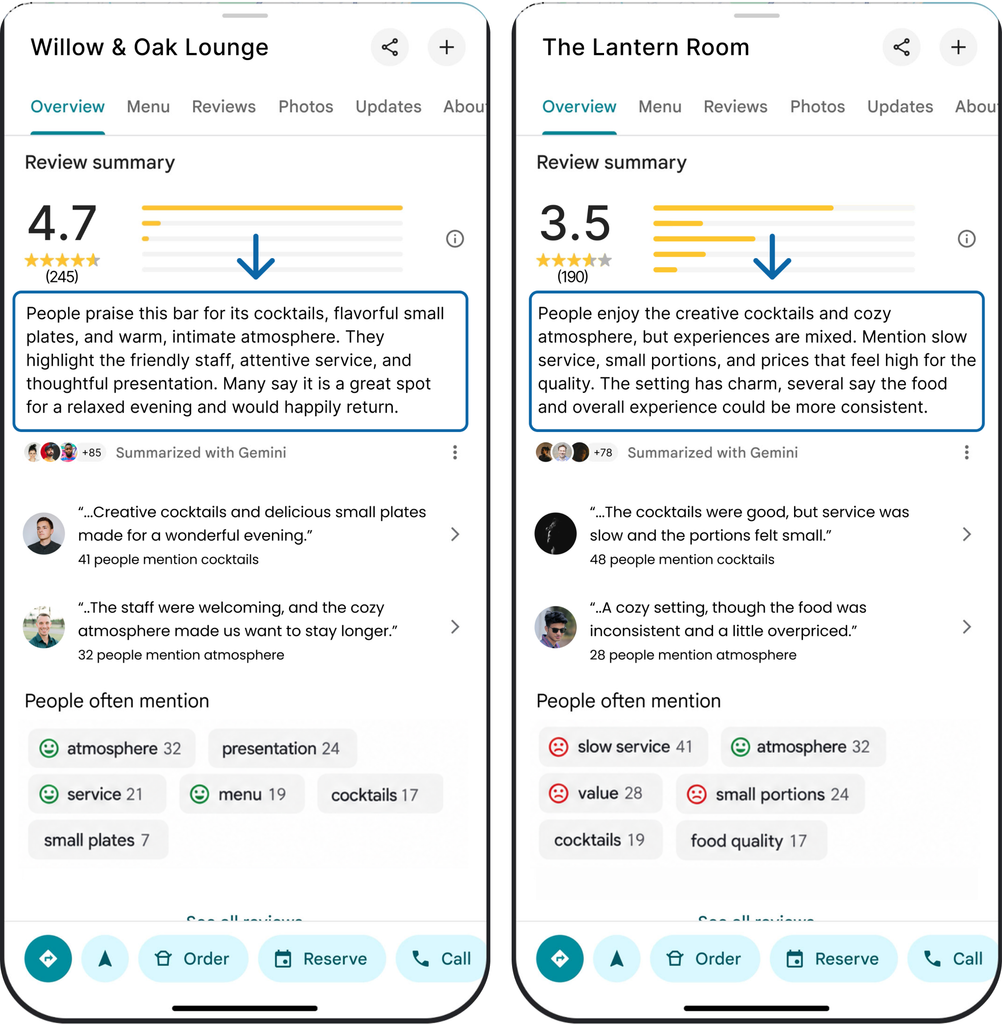
Check the types of reviews you’re getting in your GBP. Remember, Google now uses AI to summarize all these reviews to create a single, compact version of them.
Now, this may create different scenarios for you:
- Your review summary may look uninteresting.
- It may either highlight positive or negative reviews.
- If it’s mixed reviews, the negative vibe will stand out to prospects more.
Consequently, prospects influenced by the negative or mixed review summary may switch to your competitors.
Technically, Google’s AI review summary may not show for your profile, but what if it does and influences your prospects negatively?
So, play safe by:
- Asking your positive customers to share their feedback in your GBP.
- Reporting the negative or fake reviews to Google on time to maintain a reliable image.
- Not insisting on customers using keywords, like “best service” or “highly committed,” to prevent policy violations.
6: Respond to the Reviews Professionally
Timely responses can make your prospects feel heard and prefer your product or service to your competitors. So, respond to each review in a timely and responsible manner.
What about negative reviews?
Approach negative reviews calmly and professionally. Showing respect for criticism reflects your dedication, transparency, and commitment.
Remember, responding to critical reviews is essential because customers don’t fall for 100% positive reviews today. They validate a business based on its responsiveness as well.
More Google Reviews: Additional Fruitful Strategies
There are other ways to get Google reviews that won’t violate Google’s updated review policy but can still get you practical results:
- Schedule Review Requests: Use scheduling software and weekly/monthly email reminders.
- Organize Events or Webinars: Share a QR code with the participants. But they mustn’t be connected to the event’s Wi-Fi to avoid same-IP bulk reviews.
- Promote Your Website: Customers can leave reviews through the website’s QR code.
- Send Newsletters: Don’t send them to only happy customers. Otherwise, it creates a biased reviews issue or review gating.
Mistakes to Avoid When Getting Google Reviews
This section will enlighten you on what to avoid (as per Google’s review policy and experts) when attempting to get Google reviews from your valued customers.
So, here’s a list of 5 Don’ts of Google reviews you must take note of:
Don’ts
- Don’t incentivize customers: Never offer them money, freebies, gifts, etc., to get positive Google reviews.
- Don’t practice ‘review gating’: Avoid asking for reviews from only positive-minded customers while hiding the negative ones.
- Don’t get biased reviews: You can’t insist on them writing specific words or phrases in their reviews.
- Don’t ask for manipulative reviews: Avoid collecting reviews from your close ties, office employees, or friends.
- Don’t use a copy-paste reply: Never respond to every review with a copy-paste or default template reply.
What Happens If You Violate Google’s Updated Review Policy
Straight away, Google will remove a review or rating if it seems to have violated the Google review policy.
In 2025 alone, even before the updates to the review policy, Google banned 292+ million reviews while publishing over 1 billion reviews that would help maintain the Maps ecosystem.
So, naturally, reviews in your GBP that reflect bias, manipulation, or repetitiveness are subject to restriction or banning. Consequences your GBP may face:
- Temporary block from receiving new reviews or ratings
- Restriction on publishing the existing reviews or ratings
- Restriction on accessing your GBP
- Suspension of your Business Profile under Google Business Profile policies.
- The worst: a warning to the visitors or potential customers, saying that your fake reviews were blocked or removed.
How to Respond to Google Reviews, Good & Bad
When responding to Google reviews, be mindful of its updated review policy. Check out how to respond to both good and bad reviews without violating any of them:
How to Handle the Positive Reviews
Here’s a breakdown of how to respond to positive reviews step by step:
Step 1: Read the Review and Note What They Liked
Read a positive review a few times and pick what the customer mostly liked about your service. Those points should guide you to write your response.
Step 2: Check What You’re Allowed to Say
Even if you’re responding to a positive review, there are lines you can’t cross.
- Check any code of practice within your industry for replying to reviews.
- Maintain confidentiality while responding.
- Follow relevant compliance guidelines
Remember, inappropriate responses may result in financial penalties or your reputational damage.
Step 3: Write a Short Thank-You Note
Once you’ve gone through a positive response carefully, it’s a nice gesture to leave a thank-you note.
Check out this template:
When replying to a customer’s text message:
“Hi (Name) , thank you for choosing us for your service on Tuesday. If our team took great care of you, a quick Google review would mean the world to us”
How to Handle Negative Reviews
We’ve seen many small business owners avoid responding to negative reviews because they think this might make things worse.
However, responding to negative Google reviews is essential since your prospects may evaluate your service commitment based on them. They’ll value how calmly you handle complaints.
Our step-by-step ways to handle bad Google reviews are:
Step 1: Read the Full Review and Take Note
Don’t respond immediately. Instead, pick one by one and:
- Take note of what actually made the customer react that way.
- Pick problem-focused keywords or phrases written in the review.
- Note down how you will solve the problem (compensation, refund, service improvement, etc.).
Step 2: Check If It’s Real or Broken Google’s Rules
Read the negative reviews carefully:
- If they seem fake, biased, or spammy, report it to Google for removal instead of responding to them.
- Reviews from scammers also break Google’s rules, so flag and report them as well.
Step 3: Know What You’re Allowed to Say
If the negative review doesn’t seem to break any rules in Google’s updated review policy, prepare to respond. But be mindful of the following things when responding:
- Don’t respond rudely even if the review seems harsh or insulting.
- Don’t expose your customer’s sensitive information (example: ABA 496 regulation for legal practice when responding to negative reviews)
Step 4: Prepare a Short, Professional Response
Approach your response calmly and professionally instead of rushing it.
- Use polite but concise words and phrases.
- Maintain a problem-solving approach.
- Empathize with the reviewer even if it wasn’t your fault.
- Avoid lengthy responses. Max 40-100 words.
Step 5: Post Your Reply From Your Business Profile
Don’t respond to your Google reviews from a different communication channel.
Instead, always post the response from your GBP to maintain your active presence. It signals trust to Google, gaining more authority over time.
Can You Remove Bad Google Reviews?
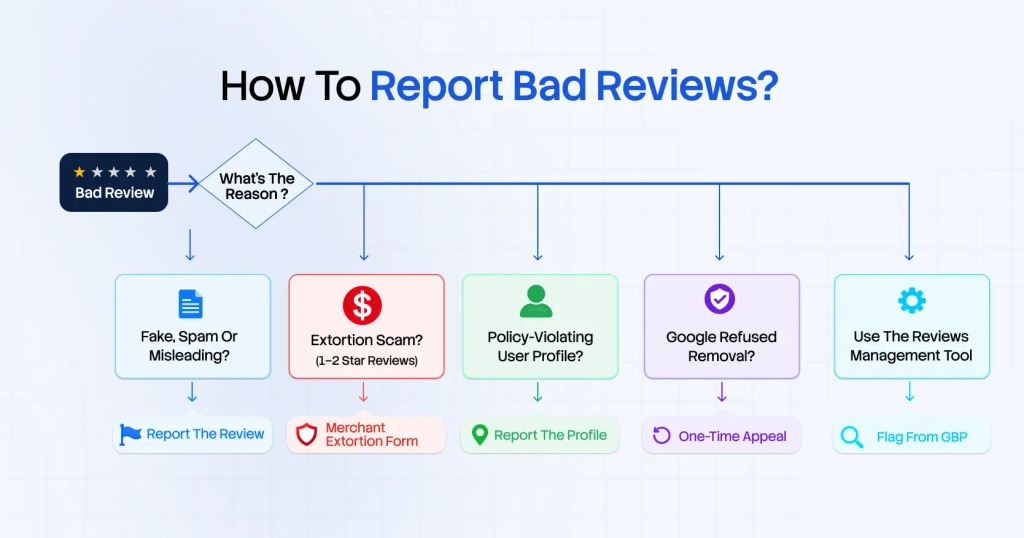
No, you can’t manually remove fake or spammy reviews from your business profile. Instead, you can flag such reviews by reporting them to Google for removal.
It’s necessary, as Google encourages reporting bad reviews to maintain a healthy reviews ecosystem.
Let’s take a look at how to deal with the inappropriate reviews on your business profile:
Start by Checking Which Reviews to Report for Removal
You can’t just report any review that you dislike or disagree with. Instead, check your reviews carefully and identify the ones that contain inappropriate or misleading information.
Google prohibits and restricts content that misinforms, harasses, impersonates, or offends users. If you find any reviews that reflect one of these, report them immediately.
Report Reviews That Look Like a Scam
Reviews with 1-star or 2-star ratings may indicate extortion scams. Scammers will ask you for money in exchange for removing those reviews.
However, as per Google, you mustn’t respond to such reviews.
- Instead, flag the reviews from your GBP by selecting the reason “Spam” or “Profanity.”
- Don’t pay the scammers or accept any other malicious demand
- Don’t try to resolve it on your own.
- Instead, collect the evidence and report it in the Merchant Extortion form.
- Now, wait a few working days to get an update from Google.
You can learn more about this in the “Report the extortion scam” section of Google Help.
Use the Reviews Management Tool
Another useful way to flag a review on Google is to use the Reviews Management Tool.
Simply search ‘Google review management’ on Google. It will take you to “Manage your Google Business reviews,” where you have to move forward step by step as follows:
- Confirm your email associated with your business.
- Search your business in the Search box.
- Select your business name and address.
- Continue to “Report a new review for removal” and press/click Continue again.
- Select ‘Report’ next to your intended review.
- Select a reason to flag the review: “Profanity,” “Spam,” “Off-topic,” or “Harmful.”
- Submit.
Wait 2-3 business days for an update. You may revisit the above tool to check if there’s any response from Google support.
Consider the One-Time Appeal System
If one of your flagged reviews has been refused by Google for removal, try the One-Time Appeal option.
- Go to the Reviews Management Tool.
- Select your business name and address.
- Continue
- Select “Check the status of a review I reported previously and appeal options,” and select Continue again.
- Select “Appeal eligible reviews.”
- Select the intended review (up to 10 reviews), and then select Continue.
- Select “Submit an appeal,” which redirects to a new form.
- Fill out the form and then Submit.
You’ll have to wait for Google’s assessment of your appeal. They’ll send you an email with the assessment result:
- The review was removed if it really violated the review policy.
- The review is still live if it’s found to be complying with the review policy.
Report a User Profile That Seems to Violate Policy
Reporting a user profile that seems to have violated Google’s review policy is a standard compliance practice as a small business owner.
How to report a policy-violating user profile?
- Open the Google Maps app on your mobile phone.
- Press Business at the bottom right.
- Press Reviews.
- Flag the intended user by tapping the user’s name, then press More, and then Report.
- Pick the appropriate reason for flagging the user (e.g., ‘privacy concerns’)
Key Takeaways
Google reviews play a vital role in validating your service quality. It’s a proven channel to connect with existing customers, engage new ones, and build credibility online.
That’s why you must pay attention to getting Google reviews by following its updated review policy.
If you’ve read this guide, you can summarize it into the following takeaways:
- Compliance with Google’s updated review policy (April ‘26) is compulsory.
- Make your review options available and seamless for your customers.
- Ask a customer for a review, but don’t force or incentivize them.
- Check your positive and negative reviews carefully and respond to them professionally.
FAQs

Azmirul Imran
Team Leader, Specialized in Dental and Local SEO
Join 5,000+ design lovers.
Monthly design insights, case studies, & inspiration straight to your mail.
Share This Post





 100% Free
